
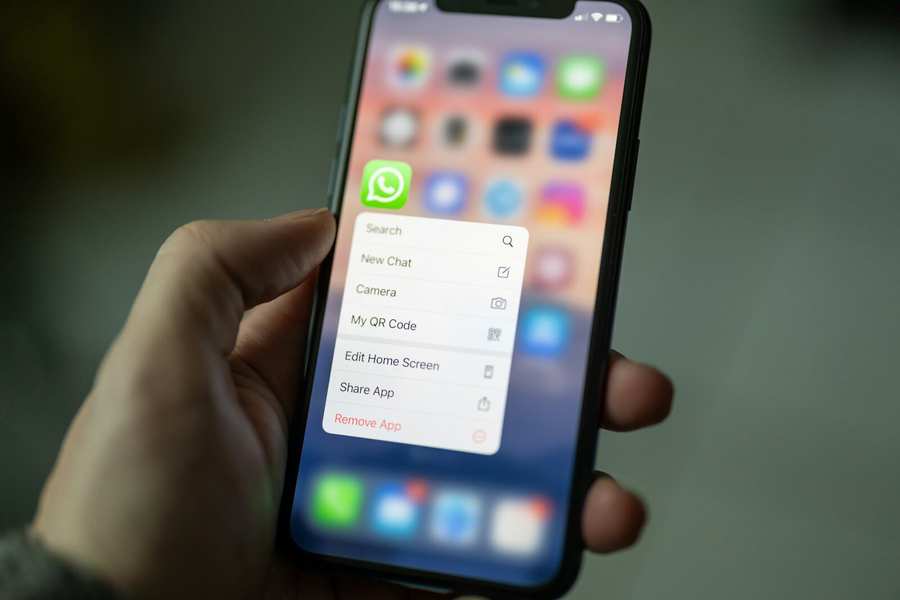
Backing up your WhatsApp chats and media to your Google Account is one of the easiest ways to protect your data if you switch phones, reinstall the app, or accidentally lose your device. WhatsApp lets Android users save chat history — including messages, photos, videos, and documents — directly to Google Drive, so everything can be restored later with minimal hassle. Here’s how you can do it step by step.
📌 Why Backing Up WhatsApp Is Important
Your WhatsApp messages often contain important conversations and memories. Without a proper backup, losing this data due to a broken phone, theft, reset, or reinstallation can be frustrating or even irreversible. Using Google Drive backup ensures your chats are saved in the cloud, ready to be restored when needed.
📱 Step‑by‑Step Backup Guide (Android)
1. Open WhatsApp
Launch WhatsApp on your Android smartphone where your chats are currently stored.
2. Go to Settings
Tap the three dots in the top‑right corner of the screen, then choose Settings from the dropdown.
3. Navigate to Chats
In the Settings menu, select Chats.
4. Open Chat Backup
Tap Chat backup — this is where you can configure how and where your WhatsApp data is saved.
5. Connect Your Google Account
Under Google Drive settings, choose the Google Account where you want to store the backup. If no account is listed yet, tap Add account and log in with your Gmail credentials.
6. Choose Backup Frequency
Tap Back up to Google Drive and choose how often backups should occur:
- Daily
- Weekly
- Monthly
- Only when I tap Back up
Selecting a regular schedule ensures you always have up‑to‑date chat history stored in the cloud.
7. Include Media (Optional)
Turn on Include videos if you want videos saved in your backup — useful if you value stored media, but be aware it can increase backup size.
8. Choose Network Type
Decide if backups should only happen on Wi‑Fi or allow mobile data as well. For larger backups, Wi‑Fi is usually recommended.
9. Start the Backup
Once all preferences are set, tap Back up to initiate the process. Depending on the amount of data and your internet speed, the backup may take a few minutes or longer.
🔄 Restoring Your Backup Later
When reinstalling WhatsApp or setting up the app on a new Android device, sign in with the same phone number and Google account used for the backup. After verifying your number, WhatsApp will prompt you to restore your chats and media from Google Drive. Tap Restore and wait for the process to finish.
🧠 Quick Tips & Common Issues
- Make sure you have enough Google Drive storage available for the backup, especially if you include videos.
- Backups are connected to your phone number and Google Account — changing either can affect restoration.
- Regular scheduled backups protect data without manual effort.
In summary: Backing up WhatsApp to your Google Account gives you peace of mind and a reliable way to preserve your message history and media. Just a few taps will help safeguard your chats and make switching phones stress‑free.